Getting Started with DeskDirector
DeskDirector Portals
Browser Support
What is the DeskDirector Admin Portal?
What is the DeskDirector Tech Portal
What is the DeskDirector Client Portal?
Desktop Portal
Managing Your Account
Admin Essentials
DeskDirector Features Overview
Logging in to DeskDirector
User Profiles & Profile Pictures
Managing Tickets with DeskDirector
Office Hours
Getting Started with the Solution Library
How Searching Works
Embedding Help Page Media
Get started with the DeskDirector Power Automate Connector
Features
Portal Customization
Forms
Service Catalogue
Communication
Email Connectors
Notifications
Email Notifications
Actionable Messages for Emails
Real-Time Chats
Email Template Engine
Surveys
Broadcasts
Generative AI
DeskDirector with Generative AI
Ticket Summary for TECH Portal
Setting up AI Service Providers
Microsoft Foundry for DeskDirector
Knowledge Bases for AI Assistants
Custom Tools for AI Assistants
AI Assistants in DeskDirector
Advanced
Login & Authentication
Contact Groups
Custom Domains
File Storage
Dashboard
Accounts
Contacts
Approvals
Tags
Task Lists
The Learning Center
Portal Deep Linking
Auditing & Analytics
Microsoft Power Automate
Actions
Solutions
Featured Solution: Teams Ticket Discussion
Power Automate Template Gallery
Featured Solution: Ticket Briefing
Power Automate Administration
DeskDirector Power Platform Connector Reference
Power Automate Connector - Setting up your first flow
Microsoft Teams App
Introducing the DeskDirector for Microsoft Team App
Installing the Microsoft Teams App (Client Mode)
Installing the Microsoft Teams App (TECH Mode)
Setting up Tags for Teams Discussions (TECH Portal)
Branding the DeskDirector Teams App
DeskDirector Teams App Notifications
Contact Groups Integration with Microsoft Teams
Setting up Content Security Policy (CSP)
Advanced topic: Setting up Tech & Client Mode in the same tenancy
Integrating Microsoft Teams with DeskDirector Tech Portal
Smart Alerts for TECH Users
Integrations
Developer Resources
Getting Started
What is the Toki Iti API
API Versions & Routes
Roles & Scopes
Authorization Options
Querying the API
How to Change an Entity Through the API
API Key Authorization
OAuth Fundamentals
Understanding OAuth for Tokity Integrations: Key Concepts
OAuth Authorization Code Flow: How an App Gets Access to Tokity
OAuth App Registration
How to Register an OAuth App to Integrate with Tokity
Choosing an OAuth App Type: Confidential vs. Public Apps and Client Secrets
OAuth Personal Secrets: What They Are and When to Use Them
OAuth Administration
Configuring OAuth Settings in Tokity
Managing OAuth Authorized Sessions and User Consent
Granting OAuth Admin Consent at the Root Level
API Response Control
Uploading Attachments (Ticket API)
The Prefer Header — Overview
Controlling Returned Data (Ticket API)
Controlling Returned Data (Form Result API)
Controlling Returned Data (Workspace API)
Workspace Ordering
How Workspace Ordering Works
Creating and Reordering Workspace Groups
Adding and Reordering Tickets in a Workspace Group
Data Sync & Notifications
Delta API: Tracking Changes Over Time
Webhooks vs. Events — Differences, When to Use Which
Verifying Webhook and Event Payloads (HMAC Signature)
Ticket Widgets
Ticket Widget: Overview
How the Widget Is Requested
Ticket Widget Anatomy and Styling
Ticket Widget Actions: Leading, Secondary and Primary
Ticket Widget: Progress Type
Ticket Widget: List Type
Ticket Widget: Description Type
Ticket Widget: Form Type
Ticket Widget: Control When a Widget Refreshes
Ticket Widget: Form Results and State Across Steps
Ticket Widget: Error Responses and Debugging
Ticket Widget: Building a Multi-Step Request
Glossary
Security
Troubleshooting
Troubleshooting via Web Developer Tools
Permissions & Access - Common Issues
Contact DeskDirector Support
Troubleshooting DeskDirector Connection Issues
Desktop Portal - Common Issues
Contact Impersonation
Approvals - Common Issues
Microsoft Teams App - Common Issues
Email & Email Delivery - Common Issues
Login & Authentication - Common Issues
DeskDirector Desktop App - Installation Issues
Table of Contents
Menus
 Updated
by Niamh Ferns
Updated
by Niamh Ferns
Menus Overview
Menus (also called Menu Groups) are used to gather together Menu Items into an ordered list. You can search, modify, create and delete Menus from the Menu Group page inside your Admin Portal. Menus exist independently of the accounts and contacts you will assign them to.
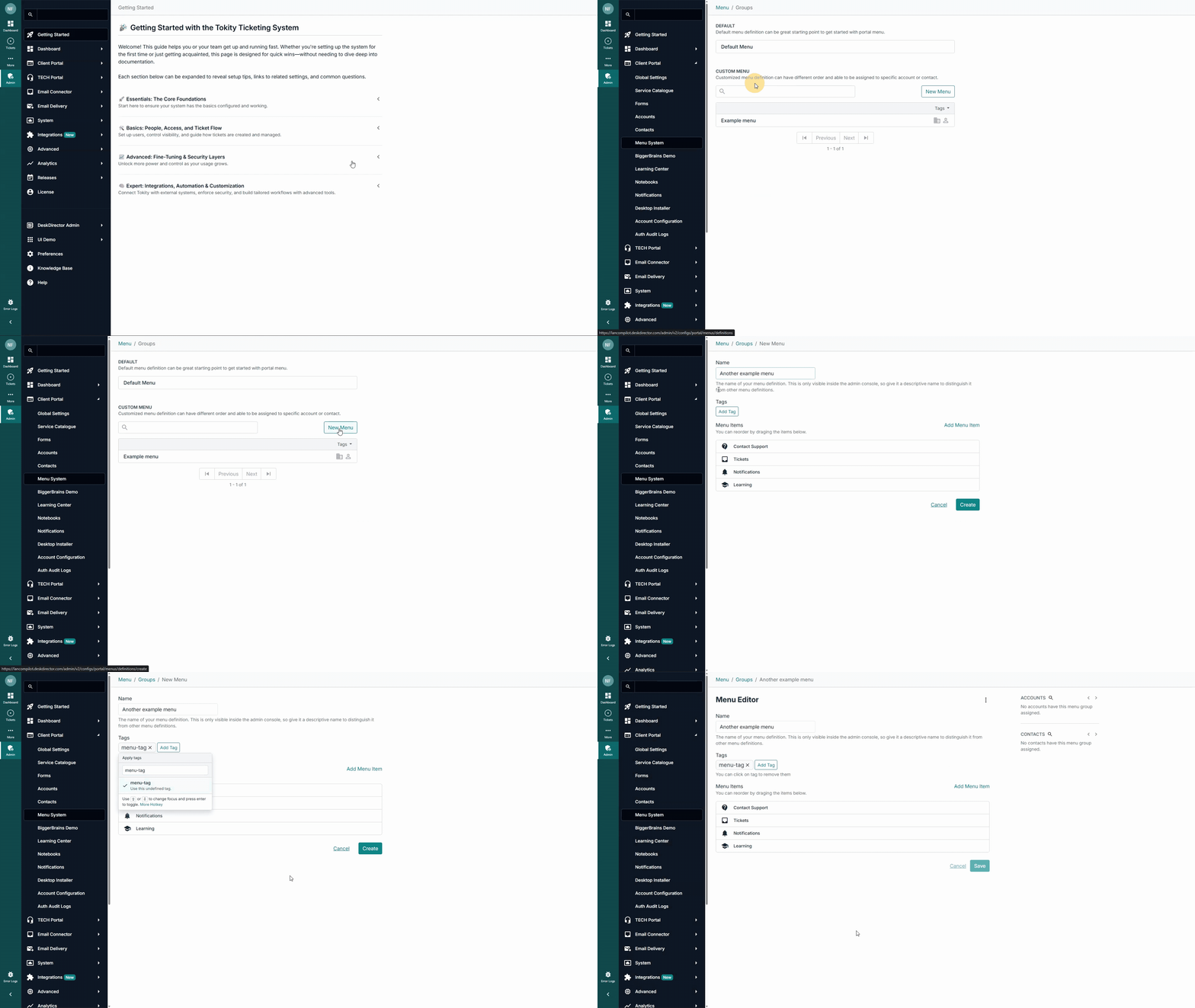
Initially, you will only have the Default Menu already set up. This menu is a global catch-all, which users will see when there isn't another menu assigned to them from an account or contact level.
The Custom Menu section shows a list of the menus that have been created for your DeskDirector instance. Adjacent to each custom menu name are 2 icons, which represent accounts and contacts, and a green highlight indicating if the menu has been assigned to a contact or account.
Assigning menus to a contact can be done from the Accounts and Contacts tabs in the Admin Portal, respectively:
Creating Custom Menus
Every menu group contains a set of system menu items by default, which cannot be removed.
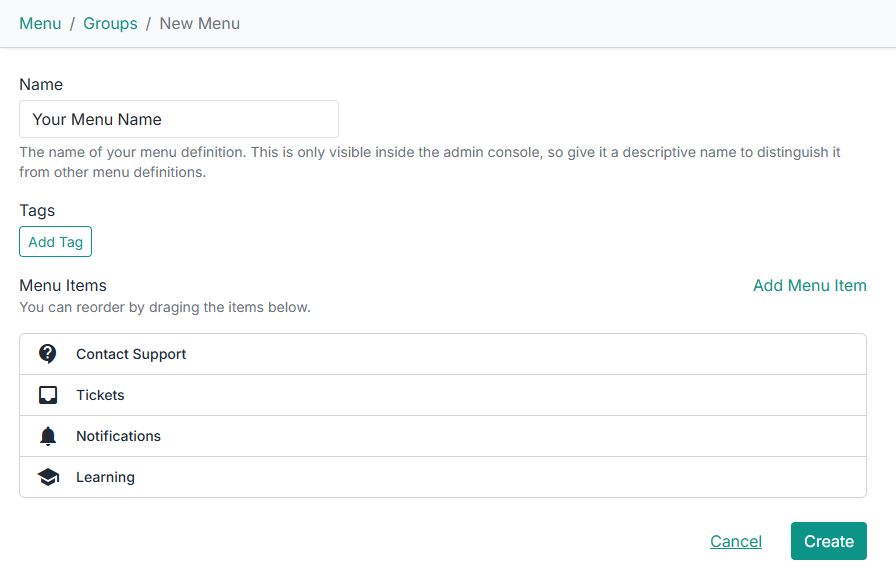
You are able to search through the Menu Items you have already created, adding them to the menu. Using your mouse to click and drag, you can rearrange the menus into an order of your choosing.
Editing Menus
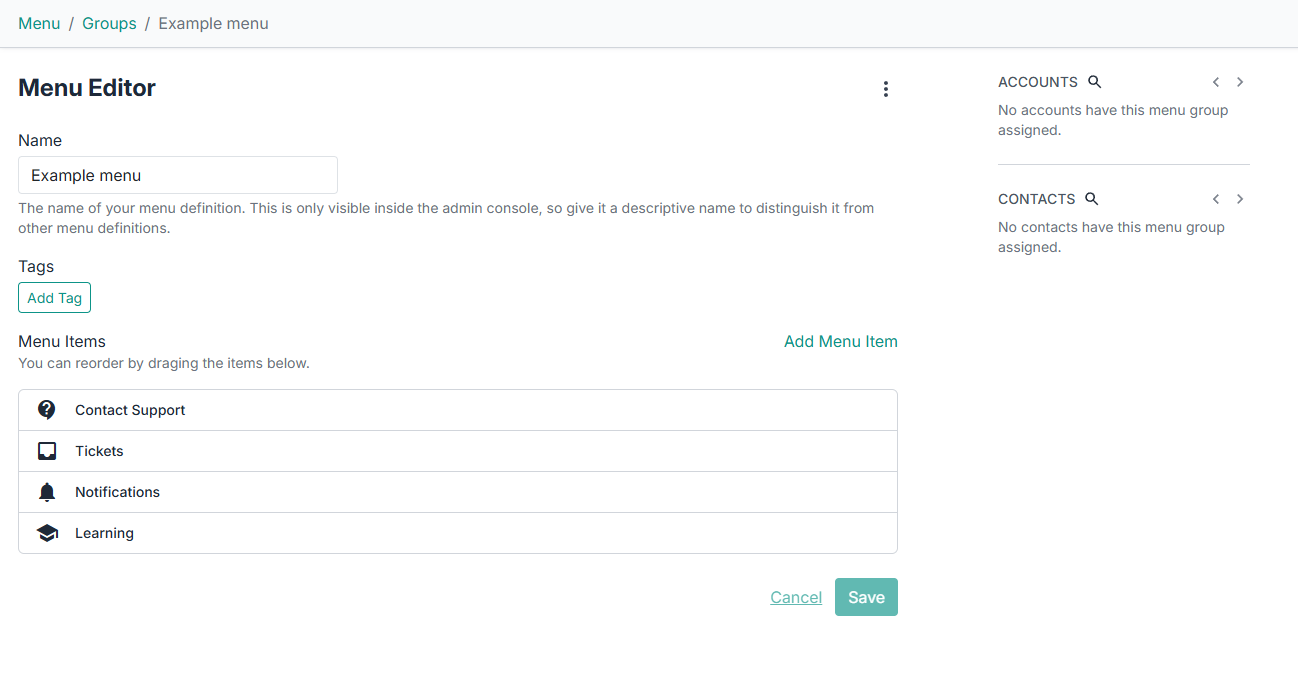
Any of your menus can be edited as you wish by clicking on the menu from the menu group list. The right pane of the menu editor should show the companies and contacts that are assigned to and using the menu.
Portal Landing Page
The first item in any menu will automatically become your Client Portal's landing page.
This will be the first page a user sees when they open the portal, unless you have deep-linked elsewhere in the application. The top menu item will also look slightly different from other menu items in order to differentiate it and give it emphasis.
The top item in the menu should always be the one that is most relevant to the target company or user. For most users, this will be the Create Ticket page, but for some users, it might make more sense to show them the Approvals or Invoices page straight away (for example).
Assigning Menus to Accounts and Contacts
The menu system uses a cascading override approach for configuration. The global menu will be overridden by any account-level menu configuration, which in turn will be overridden by any contact-level menu configuration. We recommend that you progressively define more specific menus as you need them. Starting with the global menu, then the menus for specific companies, and finally the menus for specific contacts, as required.
You will need to find the account or contact you wish to configure a menu for in the Accounts or Contacts page. Navigate to the Custom Portal Menu tab, where you will see some information about the currently applied menu. Choose the option to override this and select a Menu from the dropdown, and click Save.
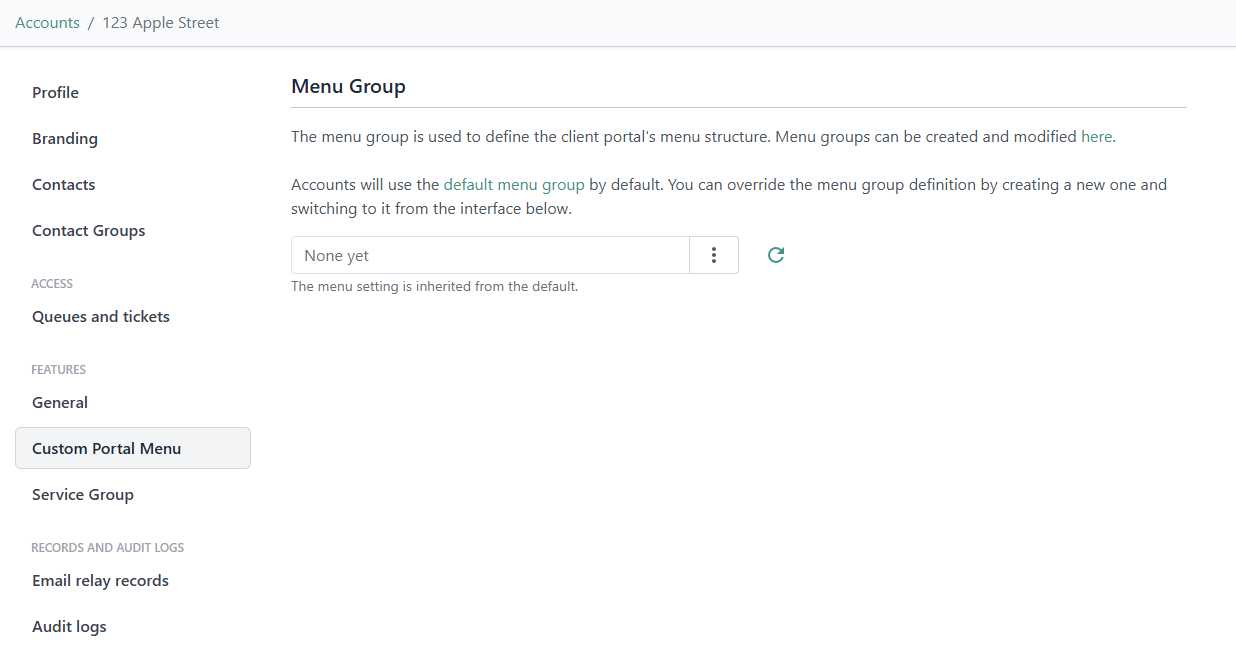
As always, when making configuration changes that affect the Portal, it is a good idea to impersonate a contact to check if things are working as expected.