Getting Started with DeskDirector
DeskDirector Portals
Browser Support
What is the DeskDirector Admin Portal?
What is the DeskDirector Tech Portal
What is the DeskDirector Client Portal?
Desktop Portal
Managing Your Account
Admin Essentials
DeskDirector Features Overview
Logging in to DeskDirector
User Profiles & Profile Pictures
Managing Tickets with DeskDirector
Office Hours
Getting Started with the Solution Library
How Searching Works
Embedding Help Page Media
Get started with the DeskDirector Power Automate Connector
Features
Portal Customization
Forms
Service Catalogue
Communication
Email Connectors
Notifications
Email Notifications
Actionable Messages for Emails
Real-Time Chats
Email Template Engine
Surveys
Broadcasts
Generative AI
DeskDirector with Generative AI
Ticket Summary for TECH Portal
Setting up AI Service Providers
Microsoft Foundry for DeskDirector
Knowledge Bases for AI Assistants
Custom Tools for AI Assistants
AI Assistants in DeskDirector
Advanced
Login & Authentication
Contact Groups
Custom Domains
File Storage
Dashboard
Accounts
Contacts
Approvals
Tags
Task Lists
The Learning Center
Portal Deep Linking
Auditing & Analytics
Microsoft Power Automate
Actions
Solutions
Featured Solution: Teams Ticket Discussion
Power Automate Template Gallery
Featured Solution: Ticket Briefing
Power Automate Administration
DeskDirector Power Platform Connector Reference
Power Automate Connector - Setting up your first flow
Microsoft Teams App
Introducing the DeskDirector for Microsoft Team App
Installing the Microsoft Teams App (Client Mode)
Installing the Microsoft Teams App (TECH Mode)
Setting up Tags for Teams Discussions (TECH Portal)
Branding the DeskDirector Teams App
DeskDirector Teams App Notifications
Contact Groups Integration with Microsoft Teams
Setting up Content Security Policy (CSP)
Advanced topic: Setting up Tech & Client Mode in the same tenancy
Integrating Microsoft Teams with DeskDirector Tech Portal
Smart Alerts for TECH Users
Integrations
Developer Resources
Getting Started
What is the Toki Iti API
API Versions & Routes
Roles & Scopes
Authorization Options
Querying the API
How to Change an Entity Through the API
API Key Authorization
OAuth Fundamentals
Understanding OAuth for Tokity Integrations: Key Concepts
OAuth Authorization Code Flow: How an App Gets Access to Tokity
OAuth App Registration
How to Register an OAuth App to Integrate with Tokity
Choosing an OAuth App Type: Confidential vs. Public Apps and Client Secrets
OAuth Personal Secrets: What They Are and When to Use Them
OAuth Administration
Configuring OAuth Settings in Tokity
Managing OAuth Authorized Sessions and User Consent
Granting OAuth Admin Consent at the Root Level
API Response Control
Uploading Attachments (Ticket API)
The Prefer Header — Overview
Controlling Returned Data (Ticket API)
Controlling Returned Data (Form Result API)
Controlling Returned Data (Workspace API)
Workspace Ordering
How Workspace Ordering Works
Creating and Reordering Workspace Groups
Adding and Reordering Tickets in a Workspace Group
Data Sync & Notifications
Delta API: Tracking Changes Over Time
Webhooks vs. Events — Differences, When to Use Which
Verifying Webhook and Event Payloads (HMAC Signature)
Ticket Widgets
Ticket Widget: Overview
How the Widget Is Requested
Ticket Widget Anatomy and Styling
Ticket Widget Actions: Leading, Secondary and Primary
Ticket Widget: Progress Type
Ticket Widget: List Type
Ticket Widget: Description Type
Ticket Widget: Form Type
Ticket Widget: Control When a Widget Refreshes
Ticket Widget: Form Results and State Across Steps
Ticket Widget: Error Responses and Debugging
Ticket Widget: Building a Multi-Step Request
Glossary
Security
Troubleshooting
Troubleshooting via Web Developer Tools
Permissions & Access - Common Issues
Contact DeskDirector Support
Troubleshooting DeskDirector Connection Issues
Desktop Portal - Common Issues
Contact Impersonation
Approvals - Common Issues
Microsoft Teams App - Common Issues
Email & Email Delivery - Common Issues
Login & Authentication - Common Issues
DeskDirector Desktop App - Installation Issues
Table of Contents
- All Categories
- Microsoft Teams App
- Installing the Microsoft Teams App (Client Mode)
Installing the Microsoft Teams App (Client Mode)
 Updated
by Niamh Ferns
Updated
by Niamh Ferns
DeskDirector Client Mode App Setup & Overview
In Client mode, the app allows your clients to independently manage tickets, receive real-time updates, and personalise the app within their Microsoft Teams environment.
Prerequisites
Before proceeding with the troubleshooting steps, it's important to note a few prerequisites:
- Tech Mode Setup: The app should be initially set up in a channel within your own Teams in TECH mode. This allows the integration of the DeskDirector Tech portal into Microsoft Teams for internal ticket management.
- Azure Active Directory (AD) Tenant: It's essential to have access to your client's Azure AD domain name or be able to manually specify the Azure AD tenant ID. This information is required to link your client's Teams to their company in DeskDirector.
- Link your client's Teams to a company: This is done in the Settings page on the Tech mode channel tab.
Setup Steps
Follow the steps below to link your client's Teams to a company:
- Set Up the Tech Mode: Set up the DeskDirector teams app in a channel in your own Teams first, in the TECH mode. You can view the documentation for detailed steps on this setup.
- Access Admin Settings: After the Tech mode setup, navigate to the DeskDirector tab in the channel where the Tech mode DD was set up. Go to
Settings>Client Portal Installations. Alternatively, open the Admin Settings with this deep link. - Create a New Client: On the Client Portal Setups page, click on New client.
- Select the Company: Choose the company of your client from the list.
- Specify Azure AD Domain Name or Tenant ID: Enter your client's Azure AD domain name or manually specify the Azure AD tenant ID.
- Create a Link: Click on the "Create" button. This action will link the Azure AD tenant (Teams) to the selected company.
- Optionally, configure app branding: Read more about it in Branding the DeskDirector Teams App (admin access required).
- Finish the setup from your Client's Side (confirm your portal as the service provider for the client's Teams tenant): There are two methods to do this:
- Method 1: Signing in with an account of the client tenant: You can choose this method if you are an admin of your client company's Team tenant. To do this, in the client company's portal installation setting page, open the Set up the integration now link and sign in with the correct account, which will grant the DeskDirector teams app the required permission to set up the portal integration information for the signed Teams tenant.
You can drag & drop the link in your preferred web browser to sign in.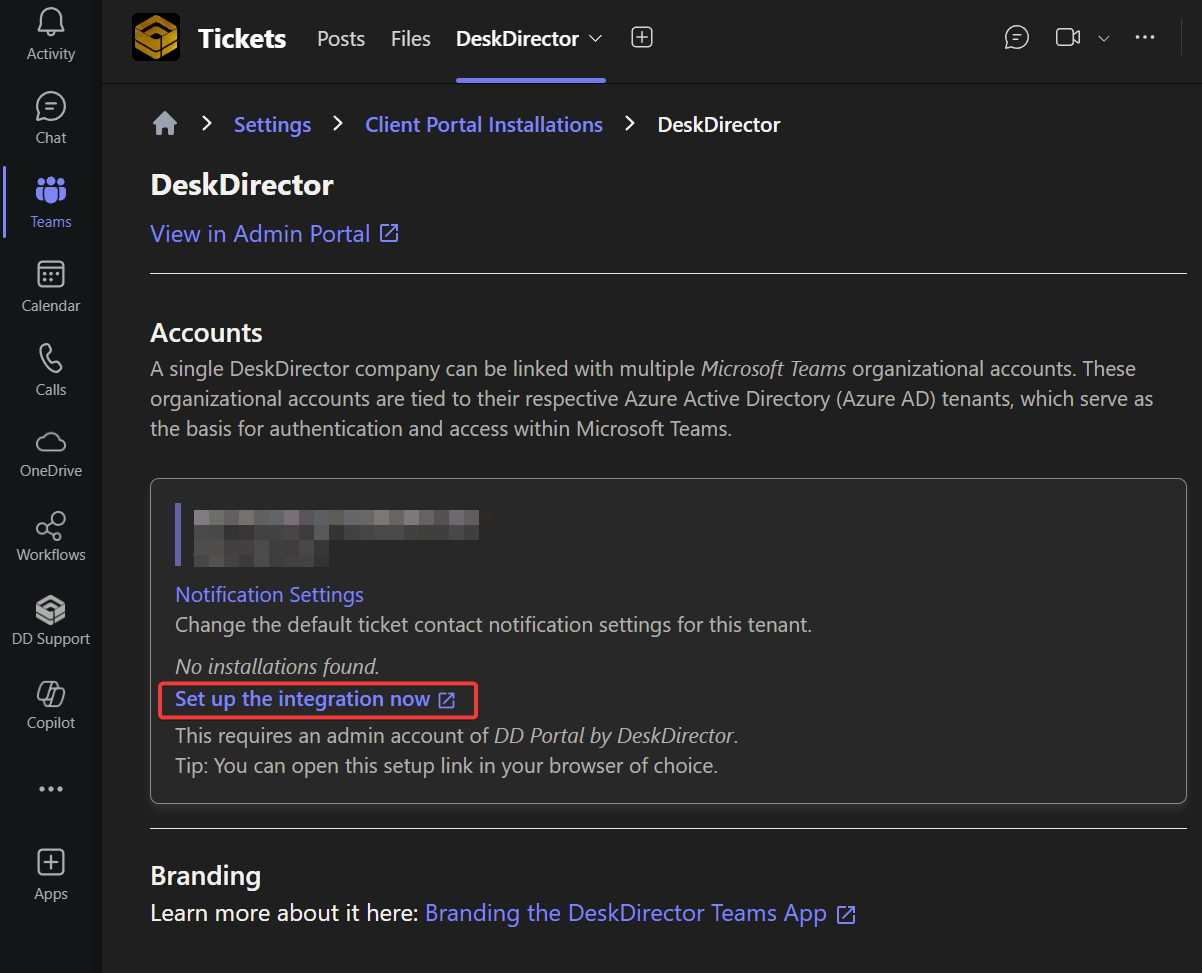
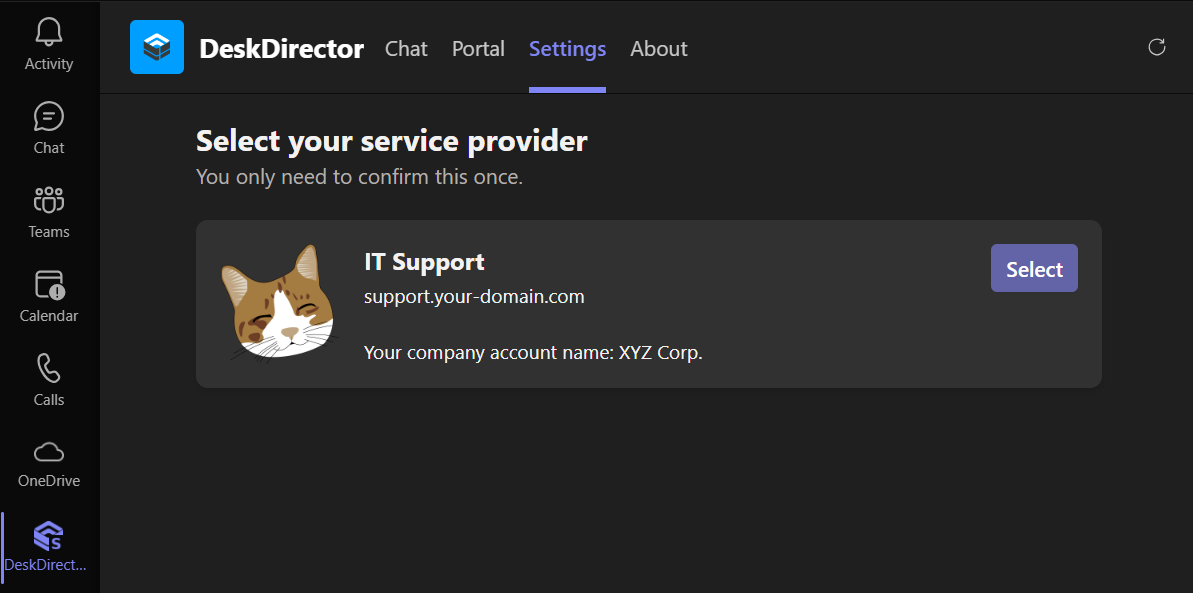
- Method 2: Open the Settings tab in the client's Teams instance: This method requires opening the DeskDirector Teams app's Settings tab in your client's Teams instance and confirming the service provider information as we have set up in the last step.
- Optionally, pin the app for individual users. Pinning the app to the app bar in the Teams client allows users to easily access your support portal (admin access required).
- Optionally, configure DeskDirector contact groups.
Video Guide
An overview of the client portal user experience in Microsoft Teams
Troubleshooting
You may run into a few issues when setting up the Teams integrations for DeskDirector. Below is an article for common troubleshooting steps to take when trying to diagnose these issues: