Table of Contents
Ticket Widget Anatomy and Styling

Every ticket widget is built from the same shared frame. This article describes that frame: the icon, the header, the description and the colours. It also lists the limits that apply to every widget.
In short: a widget is a bordered block with an icon on the left. The block has a title, an optional description, the main content and, at the bottom, action buttons. A provider can change the icon and the colours. The client handles the rest of the layout.
Layout at a glance
On a large screen the widget has two sides.
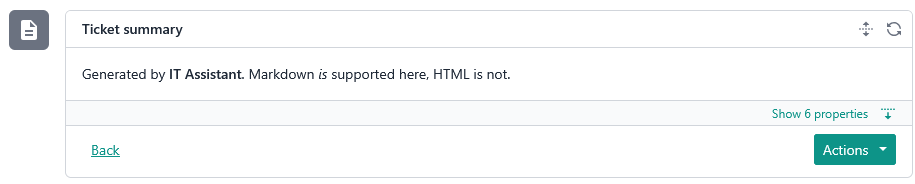
- Left: the icon. It sits in a square with a background colour. By default the background is grey and the icon is white.
- Right: the content block. From top to bottom it contains:
- Header: the title.
- Description: optional text.
- Content: the main body of the widget, which depends on the widget type.
- Actions: buttons the user can press. These are covered in a separate article.
Header and title
The header is always shown, even when the widget is collapsed. The title is required. A widget without a title is invalid.
- The title is plain text.
- It can be at most 256 characters. Anything longer is cut off by the client.
- The title colour can be changed with
titleColour(see "Colours").
Description
The description is optional Markdown text shown under the header. Use it to explain what the widget is for or what the user should do.
The description is always shown, including when the widget is collapsed. The only question is whether the user sees all of it or a preview.
Description length | What the user sees |
Under 250 characters | Shown in full. |
250 characters or more | A preview, with a control to expand and read the rest. |
Rules:
- It can be at most 10,000 characters. Anything longer is cut off by the client.
- Markdown only. Raw HTML is not supported. HTML is sanitised for security, so it will not render as written.
**Order #4821** is waiting for approval.

- Placed by Jane Smith
- Needs sign-off before Friday
Tip: put the most important sentence first. If the text is long, only the start is visible until the user expands it.
Icon
The icon appears at the left of the widget.
- Default: each widget type has its own default icon, white on a grey background. There are four, one each for Description, List, Progress and Form. There is also a separate error icon, used when something goes wrong.
- Custom: a provider can supply its own SVG with the
iconfield.
Custom icon fields:
export interface CustomSvgContent {
  readonly fill?: string | 'currentColor';
  /**
   * Four numbers separated by single spaces, e.g. "0 0 24 24".
   * Commas are not supported.
   */
  readonly viewBox: string;
  /**
   * Raw SVG markup (inner content of an <svg> element, e.g. <path> tags).
   * Sanitized before rendering. Maximum 10,000 characters — if exceeded,
   * the icon is ignored entirely (falls back to no icon) rather than
   * truncated, since truncated SVG markup is likely to be invalid.
   */
  readonly content: string;
}
Things to know:
- Too long means no icon. If
contentis over 10,000 characters, the icon is ignored completely and the widget shows no icon. It is not truncated, because a cut-off SVG would probably be invalid. - Leave
fillblank if unsure.currentColorfollows the UI's colour, so the icon stays readable. A customfillis allowed, but test it first, including against your chosen border colour.
{
  "icon": {
    "viewBox": "0 0 24 24",
    "content": "<path d=\"M12 2L2 7l10 5 10-5-10-5z\"/>"
  }
}
Colours
Two optional fields set colour. Both take one of these values: default, accent, good, warning, attention, light
Field | What it changes |
| The outer border of the content block, and the background of the icon square on the left. |
| The colour of the title text. |
Notes:
- The exact shade of each value is chosen by the client and can vary with the theme. You pick a meaning, not a colour code.
borderColourdoes not change the inner separators inside the content block. Those keep the default colour.- Setting
borderColouralso recolours the icon background. If you set a custom iconfill, check that it still contrasts with that background. - If you omit either field, the client uses its default style.
Type reference
export interface TicketWidgetContentBase<T> {
  readonly type: TicketWidgetContentType;

  readonly refreshMode?: TicketWidgetRefreshMode;
  readonly refreshIntervalSec?: number;

  readonly icon?: CustomSvgContent;

  /**
   * Maximum 256 characters. Hard-truncated (client-side) beyond this length.
   */
  readonly title: string;
  readonly titleColour?: ContentColor;

  /**
   * Markdown content, does not support HTML embed.
   * Maximum 10,000 characters. Hard-truncated (client-side) beyond this length.
   */
  readonly description?: string;

  readonly borderColour?: ContentColor;

  readonly value: T;

  /**
   * Action rendered on the far left, isolated from the secondary/primary
   * action group (e.g. "back" in a multi-step form).
   *
   * Never gated by form validation: always enabled, even when the form is
   * incomplete. When `form` is present, the current (possibly partial)
   * answers are sent with the request so the provider can restore them
   * (e.g. when the user steps back). This is NOT a submission; the provider
   * must not validate, persist or act on the answers.
   */
  readonly leadingAction?: TicketWidgetAction;

  /**
   * Secondary action rendered on the right, before the primary action.
   * Typically a lower-emphasis action (e.g. "cancel", "skip").
   *
   * Never gated by form validation: always enabled, even when the form is
   * incomplete. When `form` is present, the current (possibly partial)
   * answers are sent with the request so the provider can remember them.
   * This is NOT a submission; the provider must not validate, persist or
   * act on the answers.
   */
  readonly secondaryAction?: TicketWidgetAction;

  /**
   * Primary action rendered on the far right, the main call-to-action
   * for this widget (e.g. "next", "submit").
   *
   * When `form` is present, disabled until the form is complete (all
   * required fields answered). This is the only action that submits the
   * form: the answers are sent as a submission, and the provider should
   * validate and act on them.
   */
  readonly primaryAction?: TicketWidgetAction;

  /**
   * Answers submitted by the user, keyed by field identifier, and sent back
   * to the provider on the next request.
   *
   * Limits:
   * - Maximum 20 entries. Entries beyond this are dropped.
   * - Key: maximum 100 characters. Hard-truncated (client-side) beyond this length.
   * - A null result is replaced with an empty result.
   * - Invalid results are dropped, not converted.
   * - Each choice identifier is hard-truncated (client-side) to 100 characters.
   * - Maximum 10 choices per result. Choices beyond this are dropped.
   */
  readonly form?: Record<string, TicketWidgetFieldResult>;

  /**
   * Arbitrary provider-defined data carried across requests. The client
   * persists whatever the provider returns here and sends it back verbatim
   * on the next request. Providers do not need to store session state
   * themselves; the round trip through the client is the only state store.
   *
   * Limits (anything exceeding them is dropped, not truncated):
   * - Maximum 20 entries.
   * - Key: maximum 100 characters.
   * - Value: maximum 1,000 characters.
   * - Non-string values are dropped, not converted.
   */
  readonly state?: Record<string, string>;
}