Table of Contents
Ticket Widget Actions: Leading, Secondary and Primary

Actions are the buttons at the bottom of a widget. They let the user move the widget on: go to the next step, go back, skip, or run a quick task. When the user presses an action, the client asks the provider for a new response and replaces the widget in place. The page does not change.
In short: a widget can have up to three actions. All of them are optional. Each action can be a single button, a dropdown, or a split button.
Layout
The three actions sit on one row:
[ Back ]  ·················  [ Skip ] [ Next ]
 leading      free space     secondary  primary
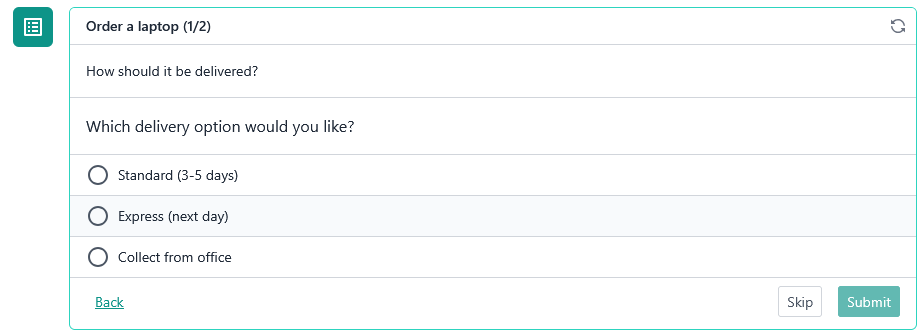
- Leading is on the far left, apart from the others.
- Secondary and primary are grouped on the right. Secondary comes first and primary is last, on the far right.
- The space between leading and the right-hand group is flexible.
Use any combination. A widget can have only a primary action, only a leading action, or none.
What each action looks like
Action | Typical use | Appearance |
Leading | Back | Link style |
Secondary | Skip, Cancel | Outlined grey button: grey border, white inside, light grey on hover |
Primary | Next, Submit | Accent colour button |
Exception: if the leading action has a dropdown (see "Variants"), it is shown as a secondary-style button instead of a link. A link cannot sensibly carry a dropdown.
Label is required
Every action needs a label. An action without a label is not shown. Keep it short, because longer text is cut off by the client.
An action with neither a url nor any items is also not shown, because it has nothing to do.
Variants
What the button looks like depends on whether the action has a url, items, or both.
urlonly: single button. Pressing it fetches theurl, and the response replaces the widget.itemsonly: dropdown button. Pressing it opens a list of choices. The button itself fetches nothing.urlanditems: split button. The left part fetches theurl. The right part, a chevron, opens the dropdown.
Dropdown entries:
- Each entry has its own label and
url, and fetches itsurlwhen chosen. - Entries cannot contain their own dropdown.
- Up to 5 entries are shown. More are dropped.
Example of a split button:
{
  "primaryAction": {
    "label": "Approve",
    "url": "/widgets/approve",
    "items": [
      { "label": "Approve with comment", "url": "/widgets/approve-comment" },
      { "label": "Approve and close", "url": "/widgets/approve-close" }
    ]
  }
}
What an action's URL does
An action's url works like the widget's own URL. When the user presses the action, the client sends the same kind of request it used to load the widget in the first place, but to the action's url. The response is rendered in place of the current widget.
- The widget loads from its original URL.
- The user presses an action.
- The client sends the same kind of request to the action's
url. - The new response replaces the widget.
Refresh uses the current URL. After an action has replaced the widget, any refresh uses the URL that is now loaded, not the original widget URL. For example, if a widget moves from step 1 to step 2 through an action, a timer refresh keeps refreshing step 2.
A full page reload starts again from the original URL. The page loads the widget from its original URL, so it returns to its first state.
The url is not a link to a page. The user stays on the ticket. This is similar to Action.Execute in Adaptive Cards, not Action.OpenUrl.
Actions and forms
When a widget has a form, the three actions behave differently.
Primary respects the form. Until every required field is answered, the primary action cannot be used. This covers the whole action, including its dropdown: if the primary is a dropdown or a split button, neither the main part nor the dropdown can be opened or clicked until the form is complete. Once the form is complete, it is enabled.
When pressed, the answers are sent as a real submission. The provider should validate and act on them. Primary is the only action that submits.
Leading and secondary are always available. The user can press them at any time, even when the form is empty or half-filled. Whatever the user has selected so far is sent with the request, so the provider can restore it. For example, when the user presses "Back", the provider can show the previous step with the answers already filled in.
Do not treat leading or secondary as a submission. The answers they carry are a snapshot of work in progress. They may be incomplete or invalid. The provider should:
- Not validate them or reject the request because answers are missing.
- Not save them as final, or act on them (for example, create an order).
- Store them only if needed, for example in
stateor by returning them inform, so that the next screen can show them again.
Without a form, all three actions are always available.
Type reference
export type ContentColor = 'default' | 'accent' | 'good' | 'warning' | 'attention' | 'light';

export interface TicketWidgetAction {
  readonly style?: ContentColor;
  readonly icon?: CustomSvgContent;
  /**
   * Maximum 40 characters. Hard-truncated (client-side) beyond this length.
   */
  readonly label: string;

  /**
   * Route fetched when the main button is clicked. The response replaces
   * this widget's current content — this is NOT a navigation link.
   * (Equivalent to Adaptive Card's Action.Execute, not Action.OpenUrl.)
   *
   * Combined with `items`, this determines how the action is rendered:
   * - `url` only: a single button.
   * - `items` only: a single button that opens a dropdown of `items`
   *   (the button itself does not fetch anything).
   * - `url` and `items`: a split button. The main (left) part fetches `url`;
   *   the toggle (right, chevron) opens the dropdown of `items`.
   *
   * Fallback rule (defensive against malformed provider data):
   * - Neither `url` nor `items` (or `items` is empty) → the action is not rendered.
   */
  readonly url?: string;

  /**
   * Dropdown entries. See `url` for how this combines with the main button.
   * Maximum 5 items. Items beyond this are dropped.
   */
  readonly items?: ReadonlyArray<TicketWidgetActionItem>;
}

/**
 * A single entry within a `WidgetAction` dropdown (`items`).
 * Entries cannot themselves contain nested dropdowns.
 */
export interface TicketWidgetActionItem {
  readonly icon?: CustomSvgContent;
  /**
   * Maximum 80 characters. Hard-truncated (client-side) beyond this length.
   */
  readonly label: string;

  /**
   * Route fetched when this action is triggered. The response replaces
   * this widget's current content — this is NOT a navigation link.
   * (Equivalent to Adaptive Card's Action.Execute, not Action.OpenUrl.)
   */
  readonly url: string;
}